When signing in, you may see the error message “Invalid account” and be unable to sign in. If this occurs, please try the solutions below.
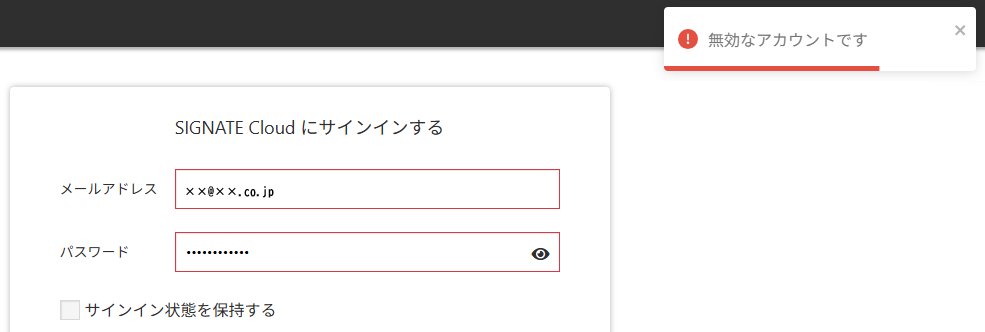
Possible Causes
- Incorrect sign-in page: SIGNATE provides two different sign-in pages. If you attempt to sign in from the wrong page, this error will be displayed.
- Account registration not completed: If you try to sign in before completing the account registration process, this error will be displayed.
How to Resolve
If the sign-in page is incorrect
SIGNATE has the following two types of sign-in pages, depending on the service.
1. Please check whether the service you are trying to access matches the sign-in page you are using.
※How to identify the correct page
- Corporate users: If you registered as a learner or competition participant using an invitation email (or registration URL) sent by your company administrator, the Corporate sign-in page「法人用サインイン画面」 (left side in the image below) applies.
- Individual users: If you registered yourself from the SIGNATE Competition website using the Individual sign-in page (“New Registration”), or if you applied for the SIGNATE Cloud Individual Plan from its website, the Individual sign-in page「個人用サインイン画面」 (right side in the image below) applies.
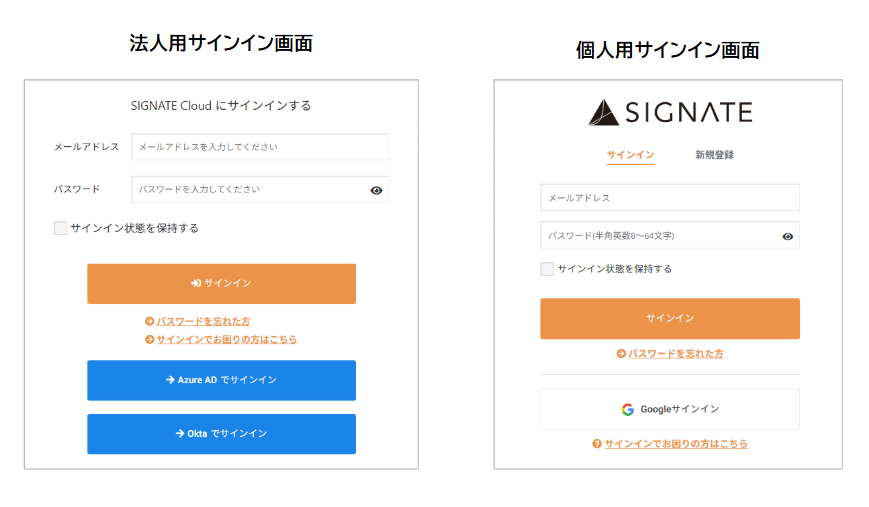
2. If you are using the wrong page, please sign in again from the correct sign-in page.
- Corporate sign-in URL: https://user.cloud.signate.jp/sign_in
Applicable services: SIGNATE Cloud, Private Competition - Individual sign-in URL: https://user.cloud.signate.jp/individual/sign_in
Applicable services: SIGNATE Cloud Individual Plan, SIGNATE Competition
Important note for competition participants
Many sign-in errors occur because participants of Private Competition use the wrong sign-in page.
The correct sign-in page for Private Competition is the Corporate sign-in page.
If you are unsure whether your competition is a Private Competition, please check with your company administrator or try signing in from the Corporate sign-in page.
3. To avoid this issue in the future, please bookmark the correct sign-in URL.
If account registration has not been completed
If your account registration is incomplete, you cannot sign in from the sign-in page. Please complete the registration process first.
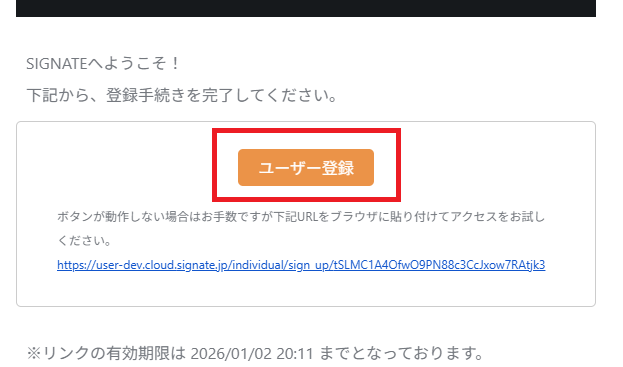
1. Open the email titled “[SIGNATE] Please Complete Your Registration”(【SIGNATE】本登録のお願い )and click the orange “User Registration”(ユーザー登録) button in the email to complete your registration.
※Depending on your email client, the “User Registration” button may not be displayed and only a URL may appear. In that case, please click the URL or copy and paste it into your browser.
Notes regarding the registration email
- If the “[SIGNATE] Please Complete Your Registration” (【SIGNATE】本登録のお願い ) email has expired or cannot be found, please restart the registration process from the registration page.
- If you have received this email multiple times, links in older emails are no longer valid. Please be sure to complete registration using the most recent email.
2. Once registration is successfully completed, you will be automatically redirected to the signed-in page.
3. From the next time onward, please sign in using the following URL:
Individual sign-in URL: https://user.cloud.signate.jp/individual/sign_in (Please bookmark this page)
Was this article helpful?
That’s Great!
Thank you for your feedback
Sorry! We couldn't be helpful
Thank you for your feedback
Feedback sent
We appreciate your effort and will try to fix the article